LatencyTest
- Menu path: ‘Tools / DPC/ISR Latency Monitor (LatencyTest)’
LatencyTest finds the drivers behind audio dropouts, crackles and stutter in games. It measures how long each driver's interrupt routines run, and how long a real-time thread waits to run after Windows wakes it. It then tells you in one sentence whether the PC is likely to have trouble, and which driver is responsible.
LatencyTest is included in the free edition. It needs administrator rights, like the rest of Process Lasso, and installs no driver of its own: It reads the kernel's own trace events through a private trace session.
LatencyTest runs as its own program (LatencyTest.exe), in Process Lasso's language and theme, and keeps running after Process Lasso's window closes. Only one LatencyTest runs at a time. It is also available on its own, free, as an installer or a portable zip, for PCs without Process Lasso: See LatencyTest on bitsum.com.
LatencyTest keeps measuring while its window is minimized, so you can minimize it and play the game or run the audio work it is testing. While it is minimized, the window title reads ‘LatencyTest: Good’, ‘Warning’ or ‘Bad’, and a colored dot on its taskbar button shows the same verdict. Closing the window ends the trace session, so it adds no overhead when you are not using it.
Running a Test
- Open ‘Tools / DPC/ISR Latency Monitor (LatencyTest)’. The test starts as soon as the window opens.
- Use the PC the way you do when the problem happens: Play the game, run the audio work, or start the download or copy that seems to cause it. Leave the test running for at least a few minutes, since many problems come and go.
- Read the verdict at the top of the window, and the sentence under it that names the cause.
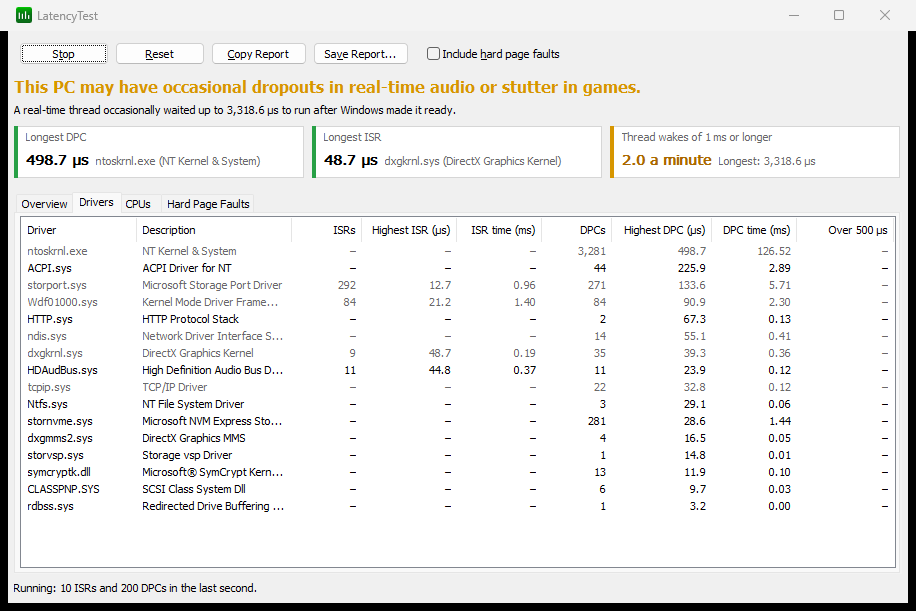
- Look at the Drivers tab to see which drivers ran the longest.
Stop pauses the test and keeps the results, Start continues it, and Reset clears the results.
The Verdict
The verdict is one of three sentences:
- Good: ‘This PC should handle real-time audio and games without dropouts or stutter.’
- Warning: ‘This PC may have occasional dropouts in real-time audio or stutter in games.’
- Bad: ‘This PC is likely to have dropouts in real-time audio and stutter in games.’
The sentence under it explains whichever measurement decided the verdict. It names the driver with the longest interrupt service routine (ISR) or deferred procedure call (DPC), or says how often real-time threads waited too long.
| Measurement | Warning | Bad |
|---|---|---|
| Longest single ISR or DPC | 500 µs or longer | 2,000 µs (2 ms) or longer |
| Thread wakes of 1 ms or longer | More than 6 a minute | |
| Thread wakes of 3 ms or longer | Any | More than 6 a minute |
ISRs and DPCs are judged by the longest single one, because one routine that runs too long is a problem with that driver. Thread wakes are judged by how often they are slow: An idle PC wakes a sleeping core late now and then, and an isolated slow wake rarely causes an audible dropout. During the first minute, the rates are counts.
What LatencyTest Measures
- Interrupt service routines (ISRs): The code a driver runs the moment its device raises an interrupt. Nothing else runs on that CPU until it finishes, so a long ISR delays everything, including audio.
- Deferred procedure calls (DPCs): The follow-up work a driver schedules from its ISR, such as processing received network packets. DPCs also run before any thread on that CPU, so long DPCs are the most common cause of audio dropouts.
- Thread wake latency: A high-priority thread waits on a 1 ms timer, the way an audio thread waits for its next buffer. LatencyTest measures the time from Windows making the thread ready to the thread actually running.
- Hard page faults (optional): With Include hard page faults checked, LatencyTest also counts, per process, how often memory had to be read back from disk. A process that keeps faulting can stall, even when every driver is fine. Checking or unchecking the box restarts the trace session.
ISR and DPC times are exclusive, like Windows Performance Analyzer's: When an ISR interrupts a DPC on the same CPU, its time counts only for the ISR's driver.
The Tabs
Above the tabs, three tiles show the numbers that decide the verdict: The longest DPC and the longest ISR, each with its driver, and how many thread wakes a minute took 1 ms or longer. The colored edge of each tile shows its own Good, Warning or Bad.
- Overview: A graph of the highest ISR, DPC and thread wake latency for each second of the last five minutes, with the Warning and Bad ranges shaded, and a summary of the whole test. The graph's scale fits the last minute; turn the mouse wheel over the graph to zoom the scale in or out, and double-click the graph (or click Reset) to return to the automatic scale.
- Drivers: Every driver that ran ISRs or DPCs, with counts, the longest single routine, the total time, and how many ran longer than 500 µs. Times over the Warning or Bad thresholds are colored, the driver that decided the verdict is highlighted, and framework drivers are dimmed. Click a column header to sort.
- CPUs: The same counts per logical processor, and the highest thread wake on each. On hybrid CPUs, the Core type column shows performance and efficiency cores.
- Spikes: The 100 longest ISRs and DPCs and the 100 slowest thread wakes of the test, newest first, each with the time it happened, its duration, the driver (for ISRs and DPCs) and the CPU it ran on. This tab answers when a problem happens and whether it repeats, for example every 30 seconds when a Wi-Fi adapter scans. Click a column header to sort; the right-click menu and double-click work as on the Drivers tab.
- Hard Page Faults: Processes with hard page faults, when the option is checked.
At the end of the Overview list, LatencyTest also records what the PC is and how it was measured: The CPU and its core counts, the Windows version and build, whether a hypervisor or memory integrity (HVCI) is running, the power plan and power mode, the power source on a laptop, the system timer resolution, and whether the test ran at the local console or in a Remote Desktop session. When it ran over Remote Desktop or on battery, a note under the status line says so, because both slow thread wakes on some PCs.
Fixing a Problem Driver
When one driver stands out in the Drivers tab:
- Update that driver, preferably from the PC or device maker's website rather than Windows Update. Network, Wi-Fi, graphics, audio and storage drivers are the usual causes.
- Right-click the driver and choose Interrupt Settings... (or double-click it). This opens Interrupt Affinity Policy with that driver's device selected, so you can move its interrupts to CPUs that your game or audio software does not use.
- If the device is not needed, disable it in Device Manager and run the test again to confirm the difference.
Right-click a driver for Open File Location and Properties too.
Framework Drivers
Some Windows drivers run interrupt and DPC routines for other drivers, so their time cannot be tied to one device: Wdf01000.sys, ndis.sys, storport.sys, dxgkrnl.sys, tcpip.sys, ntoskrnl.exe, hal.dll, ucx01000.sys, usbport.sys, hidclass.sys, ks.sys, portcls.sys, ataport.sys and scsiport.sys. When one of these is at the top of the list, the cause is usually a device whose driver uses it:
- ndis.sys and tcpip.sys: A network or Wi-Fi adapter. Try the adapter maker's latest driver, or test with the adapter disabled.
- Wdf01000.sys: Many modern drivers are built on this framework, including some network adapters. Look at which devices were busy during the test.
- storport.sys: A storage controller or drive.
- dxgkrnl.sys: A graphics adapter. Windows runs a graphics adapter's interrupt routines through dxgkrnl.sys (DirectX Graphics Kernel), which calls the graphics driver's own routine. So the adapter's ISRs are counted on dxgkrnl.sys, and the graphics driver itself (nvlddmkm.sys for NVIDIA, amdkmdag.sys for AMD, igdkmd64.sys for Intel) shows "-" for ISRs. That is normal. The graphics driver's DPCs are still counted on its own row.
Interrupt Settings... explains this when you choose it for a framework driver.
Reports
Copy Report copies the verdict, the summary, the system details and every table to the clipboard as Markdown, which forums, GitHub and chat assistants render as tables. Save Report... saves the same report as a plain text file, or as a JSON file for scripts.
Running Without a Window
For scripts and support requests, LatencyTest can measure without opening a window and write the report itself. Run it from an elevated console (it needs administrator rights), and wait for it, since a console returns at once from a Windows program:
start /wait LatencyTest.exe /run=60 /save=C:\Reports\LatencyTest.json
echo %ERRORLEVEL%
In PowerShell:
$p = Start-Process LatencyTest.exe '/run=60', '/save=C:\Reports\LatencyTest.json' -Wait -PassThru
$p.ExitCode
/run= is the number of seconds to measure and /save= the file to write: A JSON report when the name ends in .json, a text report otherwise. Add /hardfaults to include hard page faults. The exit code is 0 for Good, 1 for Warning, 2 for Bad and 3 when there was too little data for a verdict; 4 means another LatencyTest is already measuring, 5 that the trace session could not start, 6 that the file could not be written and 7 that an installer closed the run early with /terminate (the report then covers the time measured). LatencyTest also prints the verdict and the saved path to the console it was started from. LatencyTest.exe is in Process Lasso's program folder, or wherever the stand-alone edition was installed or unpacked.
Notes
- On Windows 8 and later, LatencyTest uses its own private trace session, so it can run alongside LatencyMon, Windows Performance Recorder and xperf. Windows 7 has only one kernel trace session: If another tool is using it, LatencyTest says so and leaves that tool's session alone.
- A remote desktop session raises thread wake latency on some PCs. For the most representative results, run the test at the PC itself.
- Results are only as good as the workload: A test of an idle PC says little about a problem that happens during a game.