CPU Limiter
Menu path: Options / CPU / CPU Limiter
The CPU Limiter dynamically reduces the CPU use of a process by temporarily constraining its CPU affinity. When a matching process stays above a CPU threshold for a set period, it is limited to a set number of CPU cores for a set duration, capping how much CPU it can possibly consume. For example, on a 4-core system, limiting a process to 3 cores caps it at 75% total CPU.
A rule can also measure the combined CPU use of all the processes it matches, or of each user's matching processes, and limit them together to one shared set of cores. See Scope.
When to Use It
Use the CPU Limiter when a process's raw CPU consumption must actually be reduced, for instance:
- Remote Desktop Services (RDS) hosts, where one user's processes should not crowd out others.
- Non-critical background processes that take too large a share of the system.
Not a magic bullet
CPU utilization happens because a process is doing work; limiting it slows that work down. If your goal is a responsive system during high loads rather than lower CPU numbers, ProBalance achieves that without reducing CPU use.
How It Works
You create rules specifying which processes to act on and when. Each rule defines:
- Process match, with support for wildcards, user names, and regular expressions
- Threshold: the CPU percentage that triggers the rule
- Over period: how long the process must stay above the threshold
- Limit to: how many CPU cores the process may use while limited
- Act for: how long the restriction lasts; 0 means the affinity change is indefinite
- Scope: whether CPU use is measured for each process or for the matching processes combined
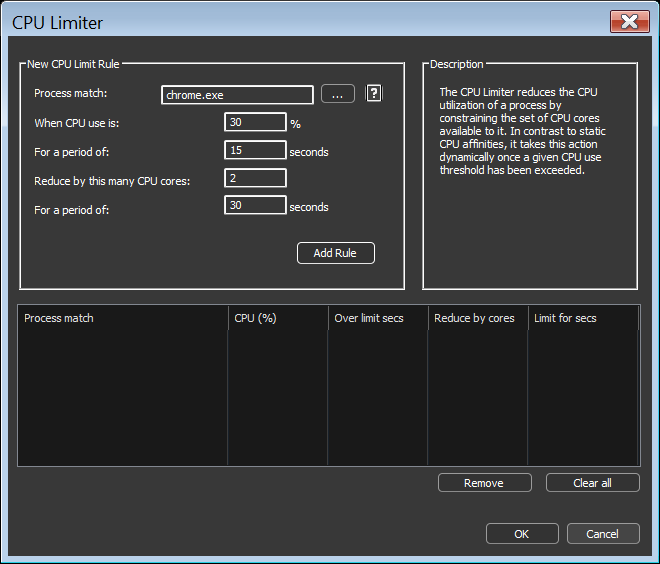
With the Each process scope, the cores a process keeps are chosen randomly from its original affinity. When the act-for duration elapses, the original CPU affinity is restored. Limiter actions are recorded in the log.
Rules from before version 19.0
Before 19.0, rules removed a number of cores ("Restrict by") rather than limiting to a number of cores. Such rules keep working exactly as before. The dialog shows them as the number of cores they leave on this computer, and they are saved unchanged unless you edit them.

Example
Suppose Chrome sometimes consumes all available CPU, but you do not want a static affinity that would also prevent legitimate short bursts. Create a rule like:
chrome.exe, after 15 seconds over 30%, restrict by 2 cores for 30 seconds
To target only a specific user's instances, append the user name to the match:
chrome.exe:johnny
Wildcards work in both process and user names:
fire*.exe:user*
If no user is specified, the rule matches any user.
Scope
The Scope of a rule sets how CPU use is measured and what is limited:
| Scope | Measures | Limits |
|---|---|---|
| Each process (default) | each matching process on its own | that process, to cores of its own |
| All matching processes combined | the total CPU use of every process the rule matches | every matching process, to one shared set of cores |
| Combined per user | the total CPU use of each user's matching processes | that user's matching processes, to one shared set of cores for that user |
With a combined scope:
- The threshold is the combined CPU use, as a percentage of the whole system, like any CPU use in Process Lasso. On an 8-core system, 12.5% is one core.
- One timer runs for the whole group. When the combined use stays at or above the threshold for the over period, every member is limited to the same cores, taken from all the system's cores. When the act-for duration elapses, every member gets its own original affinity back. A group stays limited for the whole act-for duration, even if its CPU use drops.
- A process that starts while its group is limited is limited at once.
- Different groups, such as different users, are given different cores where possible.
- A process whose own CPU affinity keeps it off the group's cores is limited to the same number of its own cores instead.
- Changing any CPU Limiter rule ends every limit in effect and starts measuring afresh.
Example: Remote Desktop and Azure Virtual Desktop Hosts
On a multi-session host with 8 cores, to keep each user's Outlook and Teams to one core when they run away, create two rules with the Combined per user scope:
outlook.exe            combined per user, after 10 seconds over 15%, limit to 1 core for 60 seconds
childof:ms-teams.exe   combined per user, after 10 seconds over 15%, limit to 1 core for 60 seconds
Each rule is its own group, so a user's Outlook and Teams are limited separately. New Teams does most of its work in several msedgewebview2.exe child processes, which childof: matches; each of them may stay under the threshold on its own, but their total is what a combined scope measures. To give Outlook and Teams one budget together, match both in one rule with a regular expression.
CPU Limiter vs. the Watchdog
A similar effect is possible with two Watchdog rules, one to constrain the affinity over a threshold and one to restore it. The CPU Limiter is easier to configure, and unlike the Watchdog's statically defined affinities, it restores each process's own original affinity.
Demo Video
Watch the demo video (YouTube)
Related Pages
- ProBalance, responsiveness without capping CPU use
- CPU Affinities, static core restriction
- Hard-Throttling
- Process Matching